Working with others
Presenting
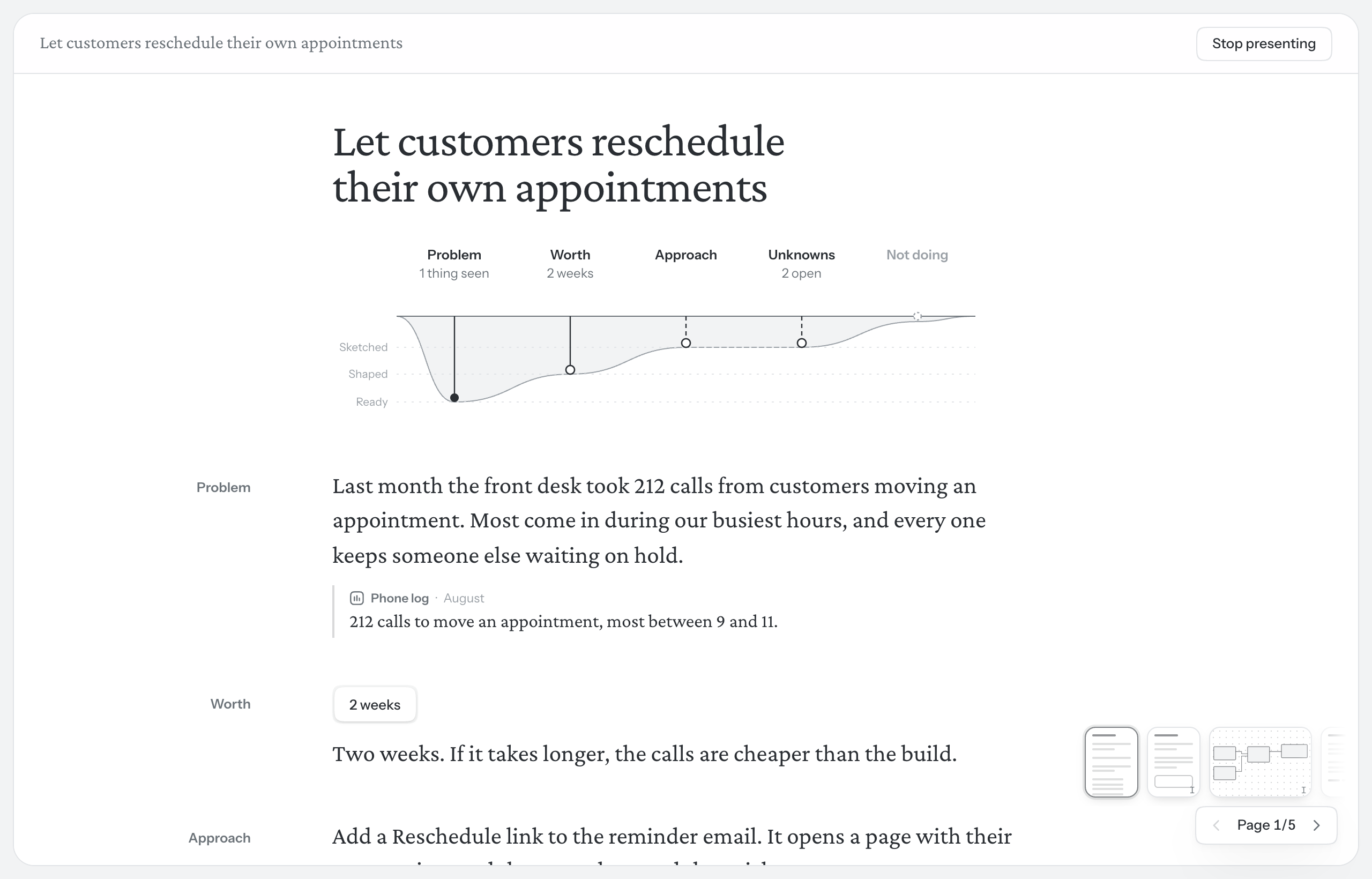
Present shows an idea one page at a time, with the tools put away. Use it to walk the people who decide through an idea, in a meeting or on a call. There’s nothing to prepare: the pages are the ones you write in.
Start presenting
- Open the idea on the page you want to start from.
- Open More actions (…) at the right of the toolbar and choose Present.
The idea fills the window: no sidebar, no chat, no second reader. Along the top are the idea’s title and Stop presenting.
Move between pages
- → or Page Down goes to the next page. ← or Page Up goes back one.
- The strip at the bottom right has the same arrows, and a thumbnail of each page to click.
- Page 2/5 (or wherever you are) opens a list of every page. Pick one to go there.
What’s shown and what isn’t
Present shows the idea as it has been kept, and leaves out everything that’s for working on it:
- Drafts
- A page chat drafted and nobody kept is left out. Drafted blocks on a page, and drafted things on a board, are hidden.
- Questions
- Questions in the margin, the second reader’s included, and questions pinned to things on a board are never shown.
- Empty blocks
- A block with nothing in it is hidden.
- Controls
- Nothing can be changed. The buttons beside blocks are gone, and so are the board’s dock and map.
Written pages are set in slightly larger type.
Boards
A board takes the whole screen. Move it and zoom as you would anywhere else: drag it, use two fingers on a trackpad, or pinch. Shift 1 shows all of it. Nothing on it can be changed. See Boards.
UI sketches
A sketch is shown as a walkthrough: the flow’s screens in order, with the places numbered along the bottom and Desktop, Tablet and Phone at the top right. The arrow keys step through the screens first, and only after the last one move on to the next page, the way a slide deck would. Coming back into a sketch from the page after it opens on its last screen. See Sketching the screens.
Stop presenting
Choose Stop presenting, or press Esc. You go back to the page you were showing.
Share the link
While you present, the address in your browser points at that page of the presentation. Send it, and whoever opens it starts presenting from there.