Writing an idea
Pages
An idea can have as many pages as the thinking needs. The first is always the idea page, with its parts. The others hold whatever helps: notes and research, a board of diagrams, the screens sketched from a flow.
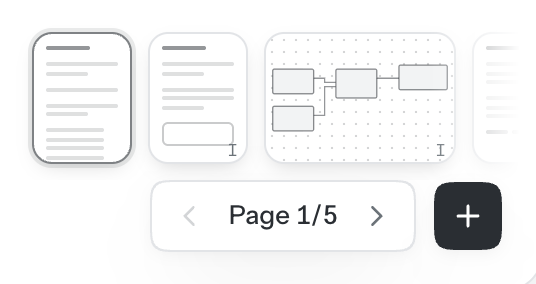
The page strip
An idea’s pages sit at the bottom right of it, as small pictures: a written page as a sheet of lines, a board as a map of what’s on it, a UI sketch as its drawing. Click one to go there, or use the arrows either side of the counter (Page 2/5). Written pages after the idea page are numbered I, II, III, and a board or a sketch that belongs to one carries the same numeral.
In a team, faces on a page show who else is on it. A page chat drafted has a dashed edge until you keep it. See Writing together and Drafts.
Kinds of page
- Page
- A written page, made of blocks like the idea page. See Formatting and the / menu.
- Canvas
- A board for diagrams, with notes, shapes and lines. See Boards.
- UI sketch
- The drawing of one flow: every place in it as a screen, for desktop, tablet and phone. See Sketching the screens.
Add a page
- Choose Add a page (+) beside the counter.
- Pick Page for writing or Canvas for a board.
- The new page goes at the end and opens. A written page opens with its name ready to type.
A board can also start from a written page: type / and choose Canvas. The board gets a page of its own, with a map of it where you typed.
A UI sketch isn’t added from the strip. It’s drawn from a Flow block: choose Sketch the flow under the flow, and the sketch gets its own page, named after the page the flow is on and placed right after it.
Name a page
A page’s name is the title at the top of it: click it and type. Until you do, it reads Untitled page or Untitled canvas. On every page but the first, a link above the name goes back to the page you came from.
Reorder pages
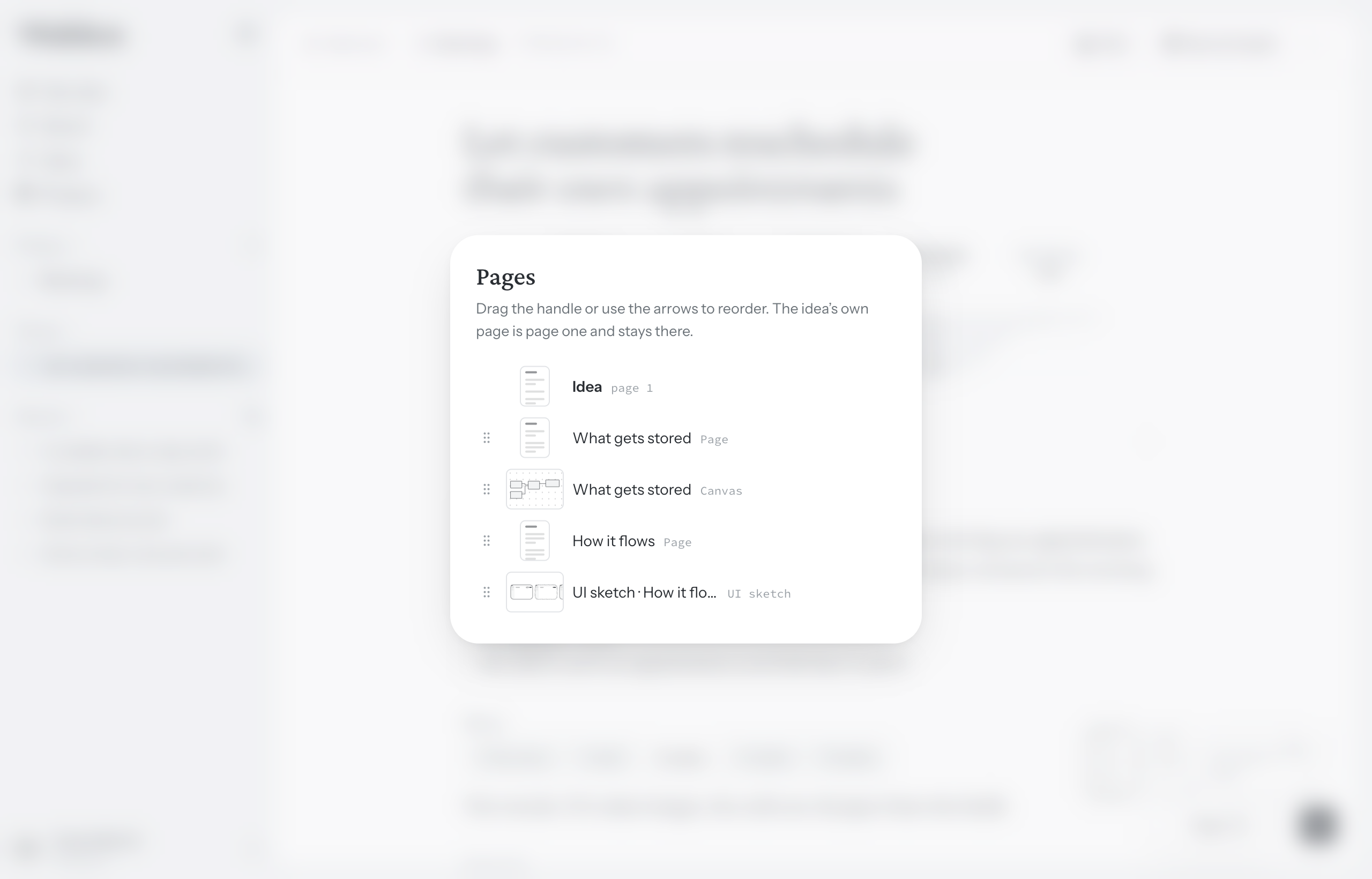
- Click the counter (Page 2/5) to see every page in one list.
- Drag a page by its handle, or use the arrows beside it.
The order is the order everyone sees, and the one Present walks through. See Presenting.
Delete a page
- Point at the page in the strip and choose its ×, or choose × beside it in the list.
- Walden asks first, since everything on the page goes with it. Choose Delete.
Undo, in the message that follows, brings the page back. A deleted page isn’t listed under Deleted, which holds whole ideas and projects. Removing a Flow block keeps the UI sketch drawn from it, and Walden offers to delete that too.
What lives on the idea page
The idea page is always page one. It can’t be moved, and it goes only when the whole idea does. In the strip it’s called Idea, and its title is the idea’s title. Problem, Worth and Approach live only there, once each. Unknowns and Not doing can be kept on any written page, and the idea page lists the other pages’ under its own. See The idea page and Unknowns and Not doing.