Writing an idea
Formatting and the / menu
A written page is a column of blocks: paragraphs and headings, lists and quotes, the parts of an idea, a flow, a sketch, a screenshot, a file. Type / to add any of them, or use the shortcuts you may already know as you type.
The / menu
On an empty line, type /. A menu opens under it, in three groups:
- Parts of the idea. Problem, Worth and Approach (on the idea page, while they aren’t there yet), and Unknowns and Not doing (on any written page). See The idea page.
- Thinking tools. Flow, Sketch, Canvas, Screenshot and File.
- Writing. Text, Heading, Bulleted list, Quote and Divider.
Keep typing to narrow the menu (/quote, /file), move with ↑ ↓, and press Enter to add the block. The + beside any block opens the same menu on a new line below it.
Shortcuts while you type
Type these at the start of a line, followed by a space, and the line becomes that block:
#or##- A heading
###- A smaller heading, for a sub-section
-or*- A bulleted list
1.- A numbered list
>- A quote
?- Then the question and Enter: an unknown. See Unknowns and Not doing.
Anywhere in a line, **words** makes them bold, *words* or _words_ italic, and `words` code. A web address becomes a link as you type it.
With words selected, ⌘ B makes them bold, ⌘ I italic and ⌘ U underlined (Ctrl instead of ⌘ on Windows). ⌘ Z undoes. Shift Enter breaks a line without starting a new paragraph. Every shortcut is in Keyboard shortcuts.
Move, copy and delete a block
Point at a block, or put the cursor in it, and its controls appear in the margin beside it. On a phone they sit just above the block you’re in.
- + adds a block below, with the / menu open.
- The grip moves the block: drag it, and a line shows where it will land. Click it instead for Move up, Move down, Duplicate (greyed out on a part or a Canvas block) and Delete.
- The speech bubble asks a question about the block, in the margin. See Writing together.
Deleting a block says so, with Undo. Deleting a part from the idea page also records that you left it out on purpose; see The idea page.
Flows
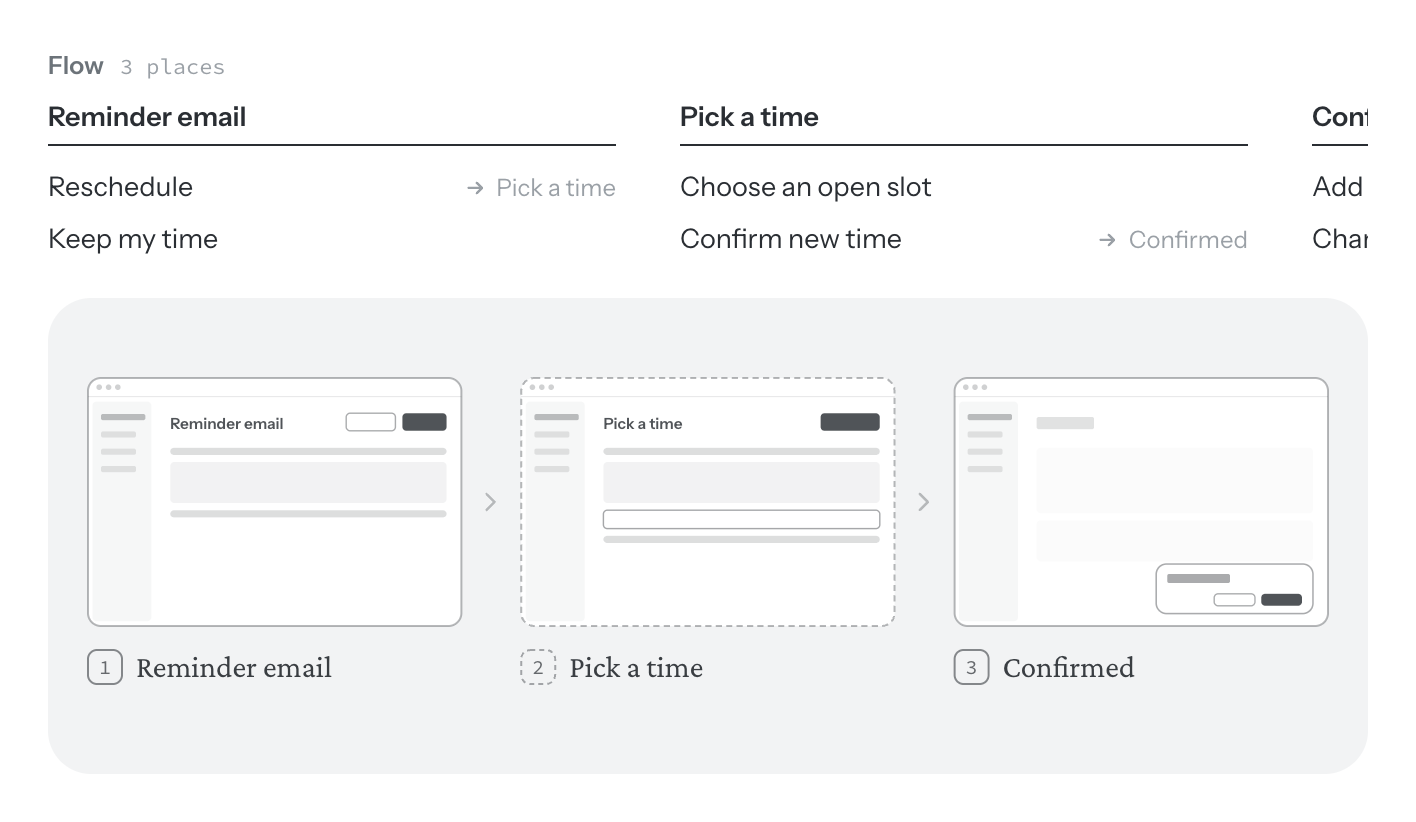
A flow lays out the places someone goes, what they can do in each, and where each action leads. Each place is a box with its name on top and its actions under it.
- Type a place’s name and press Enter to go on to its actions. Enter after an action adds the next one; Backspace on an empty one removes it.
- Point at an action and choose the arrow to say where it leads: another place, or Nowhere.
- Add a place is under the flow, and Add an action under each place as you point at it. The × on a place removes it.
Once the places have names, choose Sketch the flow and Walden draws each one as a screen, on a page of its own. See Sketching the screens.
Sketches, screenshots, files and boards
- Sketch. A panel to draw on with a mouse, a pen or a finger. The marker is thick on purpose, to keep you out of the details. Point at it for Undo stroke and Clear, and write what it shows underneath.
- Screenshot. How the product looks today. Paste or drop an image anywhere on a page, or choose
/screenshot. It lands after the block you were in, with a line under it for what it shows. - File. Drop a PDF, a document or a spreadsheet on the page, or choose
/file. It lands as a block with Open and a line for why it matters. In a project, the menu also offers the project’s own files and those on its other ideas. See Files. - Canvas.
/canvasmakes a board as a page of its own and shows a map of it here; click the map to open it. See Boards and Pages.