Getting started
Finding your way around
The sidebar gets you to any idea in a click or two. This page covers the sidebar, your list of ideas, search, and writing an idea down from anywhere.
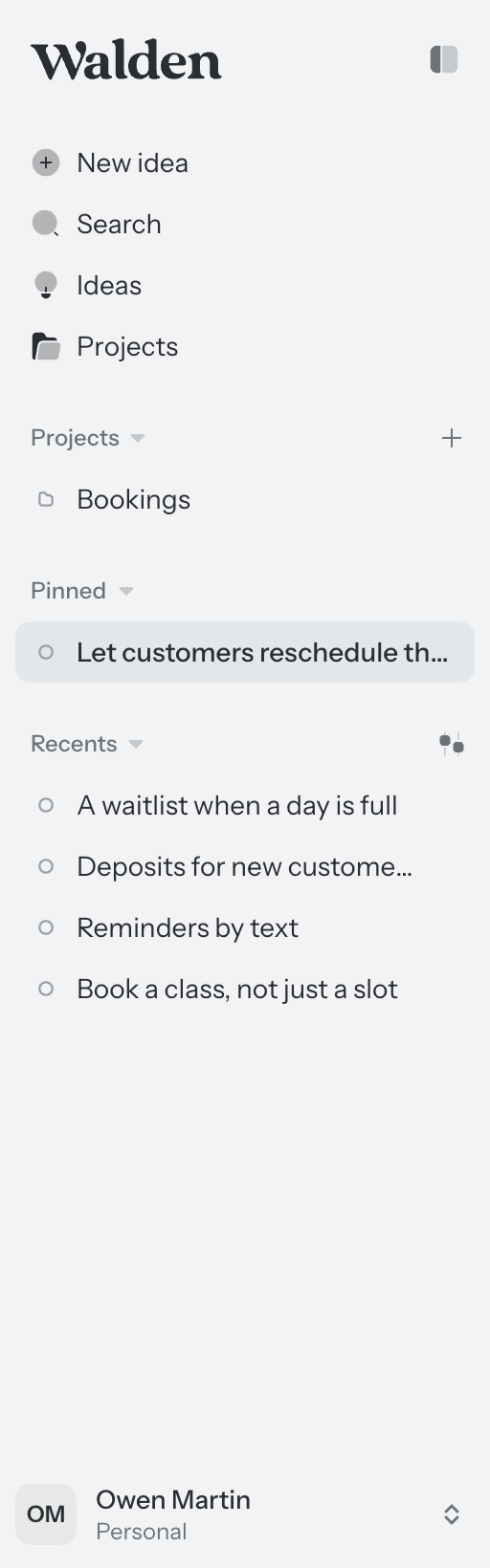
The sidebar
The top rows take you to the main places. New idea opens Home, where you start an idea. Search opens one box that searches ideas and projects. Ideas lists every idea, and Projects lists your projects. Under them are three sections:
- Projects. Only the projects you pinned. The arrow beside the title opens every project; the + starts a new one.
- Pinned. The ideas you pinned. It appears once you pin one. See Organizing your ideas.
- Recents. Up to eight ideas, the ones you changed last first, leaving out the pinned ones. The arrow beside the title opens All ideas.
Click a section’s title to fold it away. To put the whole sidebar away, press the button at the top of it or ⌘ \ (Ctrl \ on Windows). It keeps its icons, so everything is still a click away. On a phone, the sidebar is the first screen, and the arrow at the top left of any page brings you back to it.
Filter Recents
Recents shows open ideas unless you tell it otherwise. The filter button beside its title offers:
- Open. Not handed off or shelved. This is the usual view.
- Waiting on you. Ideas with a question nobody has answered.
- Sketched, Shaped, Ready. Open ideas by how far they’ve got. See Readiness.
- Handed off and Shelved. Ideas that went to whoever builds them, and ideas set aside for now.
- Everything. Every idea.
Being built and Built show the ideas a coding agent is building, and the ones marked built. See Following a build.
While a filter is on, the section takes its name. It changes only your own sidebar.
Your list of ideas
Choose Ideas in the sidebar. The page lists every idea in the workspace in four tabs, one for each stage of an idea’s life:
- Forming. Ideas still being worked out. Each row says how far the idea has got (Sketched, Shaped or Ready) and, under its title, the one next step that would take it further.
- Handed off. Ideas that went to whoever builds them.
- Built. Ideas marked built, with whether it went as planned.
- Shelved. Ideas set aside for now.
Above the tabs, Waiting on you lists anything that needs a person: a question someone left on an idea, with Open it beside it. It shows only while something is waiting.
It also lists a question from a build (Answer it) and a finished build nobody has looked over yet (Review it). See Following a build.
Find an idea searches titles and everything written on the pages. The project picker narrows the list to one or more projects, or to the ideas in none. Chat in the toolbar opens a chat beside the list that reads across all your ideas and answers; see Chat. A project’s own page has the same list, for its ideas. See Projects.
Search
Choose Search in the sidebar. Before you type, it offers your projects and your most recent ideas. As you type, it finds ideas with your words in their title or on their pages, and projects by name. Use ↑ ↓ and Enter to open one, or Esc to close.
Write an idea down from anywhere
Ideas arrive while you’re doing something else. Quick capture writes one down in a line, without leaving the page you’re on.
- Press ⌘ K (Ctrl K on Windows) anywhere in Walden, when you’re not typing in a page or a field.
- Write the idea in a line and press Enter. It becomes a new idea with that title.
- The box stays open for the next one. When you’re done, choose Done or press Esc, or choose Open it to open the last idea you wrote.
Each idea you write is listed in the box as you go; the × beside one takes it back. A captured idea has no project yet and starts with just its Problem, under Forming.
The account menu
At the foot of the sidebar are your name and the workspace you’re in. Click them for:
- Workspace, once you’re in more than one: switch between your idea book and your teams. See Workspaces and roles.
- Appearance: Light, Dark, or System to follow your device.
- Settings, Keyboard shortcuts and Docs, which opens these pages in a new tab. See Your account and Keyboard shortcuts.
- Log out.