Writing an idea
Boards
A board is a page for diagrams. Use one when words aren’t enough: how the parts of a system fit together, what gets stored, where things connect.
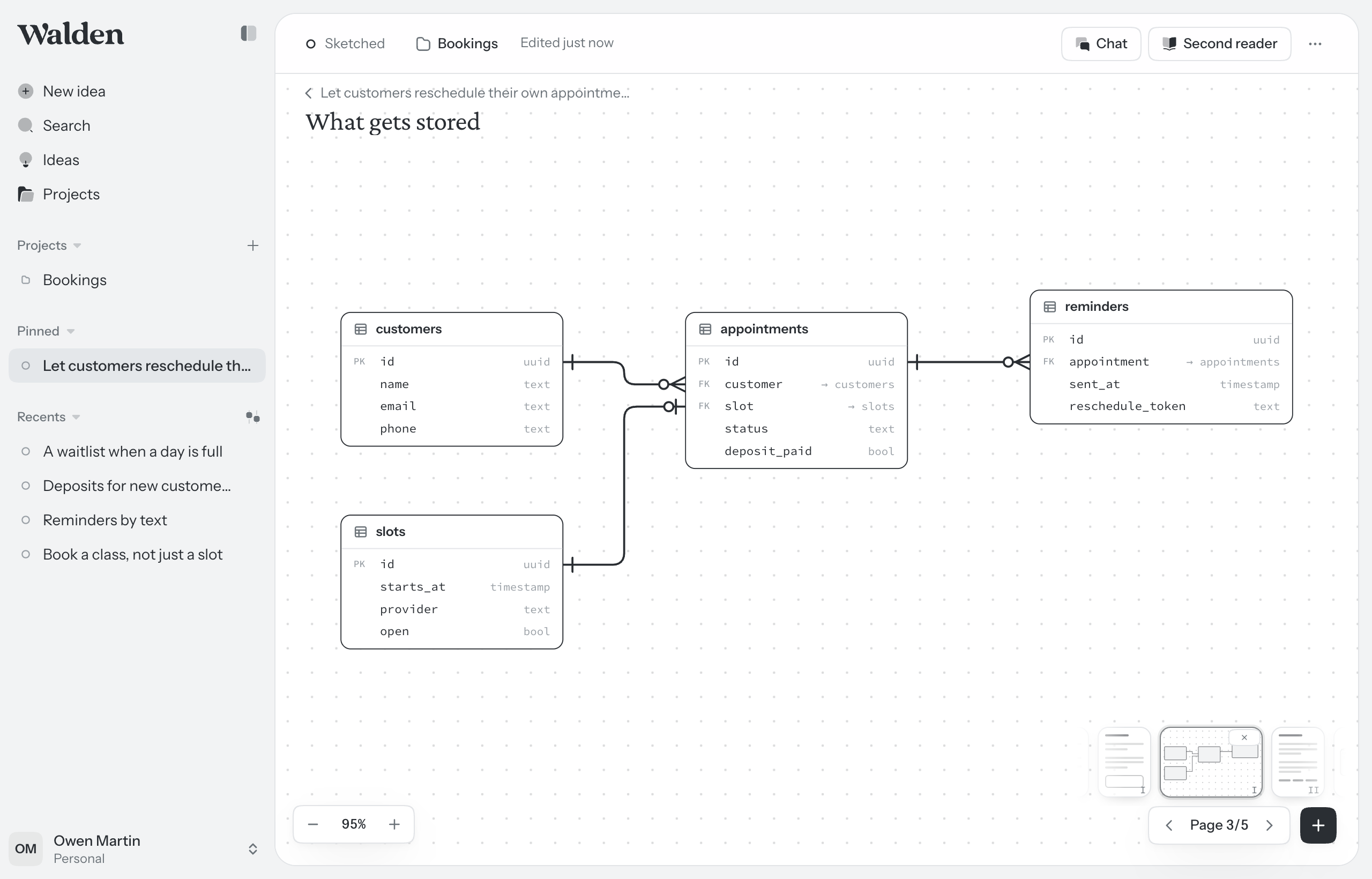
Add a board
- Open the idea and choose Add a page (+) in the page strip at the bottom right, then Canvas.
- Or type / on any written page and choose Canvas. That makes the board and puts a picture of it on the page. Click the picture to open it.
- Click Untitled canvas at the top left to name it.
Draw
The tools are in the dock along the bottom. Pick one, then click the board to place something, or drag to draw it at the size you want. You can type into it straight away.
- Note S
- A sticky note. It comes in three colours and says who wrote it.
- Text T
- Words on their own.
- Box R
- A box with words in it.
- Line A
- Drag from one thing to another to connect them.
- Marker M
- Draw freehand.
- Section F
- A named area of the board. When the idea is handed off, each section becomes a heading.
- Picture I
- A screenshot or an image. You can also paste or drop one onto the board.
- /
- Add any shape by name.
To change what something is later, select it and use the menu in the bar above it. A box can become a table, a service or a question, and its words come with it.
Shapes for thinking and for systems
Beside the dock are two trays of shapes. Open one with its button, or press 1 or 2. Shapes from both can share a board.
- Thinking. Questions, assumptions, what you've seen: question, assumption, seen, group, two axes.
- Systems. Tables, stores, services and how they relate: table, store, service, outside service, person, boundary.
A question shape is dashed with a hollow dot while it’s open. Click the dot to mark it settled: the line goes solid and the dot fills in.
Connect things with lines
Hover over a shape and four small ports appear, one on each side. Drag from a port to another shape to connect them. Let go on empty board and Walden offers what to add next, already connected.
- Words on a line. Select the line and choose Add words, or double-click its middle. The words travel with the line.
- Bend it. Drag the handle at its middle. Straighten in the bar puts it back.
- How many of each. Choose Relation in the bar and set each end: one, zero or one, many, zero or more.
Tables
A table is written as text: its name on the first line, then one field per line, with the field’s name, a space and its type. An empty table shows an example to follow.
Connect two tables with a line and Walden writes the key into the table the line ends at. The text is what counts; the line only draws it.
Select and arrange
- Click a thing to select it. Shift-click adds another. Drag on empty board to select several. ⌘ A selects everything except the frames drawn around other things: sections, boundaries, groups and axes. (On Windows, use Ctrl wherever this page says ⌘.)
- A bar appears above what’s selected with everything you can do to it: Duplicate, Delete, Ask a question about this, and for several things, line them up, space them evenly or Tidy.
- Things snap to each other as you drag. Hold ⌘ to place freely. The arrow keys nudge the selection; hold Alt while dragging to pull off a copy.
Move around
- Move the board: hold Space and drag, press H for the hand, use two fingers on a trackpad, or drag with the middle mouse button.
- Zoom: pinch, or ⌘ + and ⌘ −. ⌘ 0 goes back to full size, Shift 1 shows the whole board, Shift 2 zooms to what’s selected.
- The map at the bottom left shows the whole board and where everyone is. Click it to go there.
Undo, copy and paste
⌘ Z undoes your own changes and Shift ⌘ Z redoes. ⌘ C and ⌘ V copy and paste, on the same board or another. Delete removes what’s selected along with its lines, and offers Undo.
Questions on a board
Anyone in the workspace can pin a question to a note, a box or a shape, viewers included. Select it and press Q, or choose Ask a question about this in the bar. A small “?” shows on the thing. Anyone who can edit can Settle it or Dismiss it. While a question is open, the idea is listed under Waiting on you. See Writing together.
With other people
In a team, you see each other’s pointers and what each person has selected. Click someone’s face beside the toolbar to follow them around the board; press Esc to stop.
Chat on a board
Ask chat to draw a diagram and it lands on the board as a draft, with Keep and Discard. Whatever you have selected is what chat is told you’re pointing at. See Chat.
Every shortcut is listed in Keyboard shortcuts.